









FAQ-EM16
Connection & Pairing
If your mouse fails to connect or experiences an unstable connection via the 2.4G USB receiver, you can manually re-pair it using the ProtoArc web app.
Manual re-pairing steps:
- Plug the 2.4G USB receiver into a USB port on your computer.
- Open Google Chrome or Microsoft Edge.
- Go to the ProtoArc Web HUB (https://hub.protoarc.com/).
- Navigate to Settings and select "Pair New Receiver."
- Follow the on-screen prompts to complete the pairing process.
Tip: If you cannot access the Web HUB or encounter issues during pairing, verify that the receiver is firmly plugged in and ensure you are using Chrome or Edge.
If you need to clear the current Bluetooth pairing history or switch the mouse to a new device, reset the Bluetooth connection using these steps:
- Turn off the mouse power switch.
- Press and hold the scroll wheel button (middle click).
- While continuing to hold the scroll wheel, turn the power switch back ON.
- Watch the Bluetooth channel indicator light. When it starts flashing rapidly, release the scroll wheel.
- Open the Bluetooth settings on your computer, tablet, or host device to discover and connect to the mouse again.
Battery & Charging
When the battery is low, the red low-power indicator will flash continuously until the mouse powers off completely.
You may also notice performance issues caused by low voltage:
- Choppy or laggy cursor movement
- Input delay
- Inconsistent tracking
If you experience any of these symptoms, recharge your mouse.
- Plug the USB-C end of the cable into the port on the front of the mouse.
- Plug the USB-A end into your computer or a compatible USB power source.
Indicator light status:
- Charging: Solid red light
- Fully charged: Solid green light
A full charge takes approximately 2 to 3 hours.
LED Indicator Guide
| Status / Mode | LED Behavior |
|---|---|
| Low battery | Flashing red |
| Charging | Solid red |
| Fully charged | Solid green |
| Standard scroll mode | Solid red for ~3 seconds |
| Touch scroll / Smart Touch Wheel mode | Solid green for ~3 seconds |
Scroll Wheel Modes
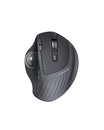
The EM16 features multiple scroll modes that can be toggled using the Smart Touch Wheel mode button.
Enabling Smart Touch Wheel mode unlocks fast scrolling (up to ~400 lines per trigger action by default). You can also customize scroll speed levels up to 1,000 lines per trigger via the ProtoArc Web HUB.
Whenever you switch modes, the indicator light will show your active mode:
- Solid red (~3 seconds): Standard scroll wheel mode
- Solid green (~3 seconds): Touch scroll / Smart Touch Wheel mode
DPI & Sensitivity Settings
Press the dedicated DPI button on the mouse to cycle through speed settings. The LED indicator will flash to confirm your current level:
| LED Flashes | DPI Level |
|---|---|
| Flashes 1 time | 1000 DPI |
| Flashes 2 times | 1600 DPI |
| Flashes 3 times | 2400 DPI |
Sleep Mode
Yes. To conserve battery life, the EM16 enters sleep mode after 60 minutes of inactivity.
During sleep mode:
- The LED indicators turn off.
- The mouse enters a low-power state.
This is normal power-saving behavior and does not indicate a malfunction.
To exit sleep mode, simply:
- Click any mouse button, or
- Move the mouse across your desk surface.
The mouse will wake up within 3 seconds, the indicator will turn back on, and regular operation will resume.
Customization & ProtoArc Web HUB
Yes. You can remap buttons and adjust custom preferences via the ProtoArc Web HUB.
- Supported browsers: Google Chrome, Microsoft Edge (latest versions recommended)
- Supported operating systems: Windows 8–11, macOS 10.12 or later
If you are using a Mac, macOS requires Input Monitoring permission for your web browser (Chrome or Edge) so the Web HUB can apply custom button maps and DPI profiles.
How to grant permission on Mac:
- Open System Settings → Privacy & Security → Input Monitoring.
- Toggle on permission for your browser (Google Chrome or Microsoft Edge).
Privacy notice: The ProtoArc Web HUB uses this permission strictly to write hardware configurations to your mouse. It never records, tracks, or stores your typing or keystrokes (100% private – no logging).
