
Your wireless mouse cursor stutters or jumps unpredictably. Before replacing it, know the real causes. USB 3.0 cables leak electromagnetic noise that drowns out your mouse's 2.4GHz signal. Low batteries and reflective surfaces make it worse. Three main culprits create these problems, but simple fixes can solve them in minutes.
Why Your Wireless Mouse Keeps Lagging
Before fixing anything, you need to identify which problem you're dealing with. These three culprits cause most of wireless mouse lag, and simple tests reveal which one is yours.
USB 3.0 Devices Generate Radio Interference
USB 3.0 cables and ports generate radio frequency (RF) noise in the 2.4GHz band, which is the exact frequency your wireless mouse uses to communicate. USB 3.0 achieves 5 Gbps speeds by rapidly switching electrical signals. This process leaks electromagnetic noise in the 2.4 to 2.5 GHz range. When your mouse receiver sits near a USB 3.0 device transferring data like external hard drives, phone cables, or docking stations, that radiation drowns out the mouse's weak signal.
Test for USB 3.0 interference. While experiencing lag, unplug your USB 3.0 devices one by one. If the mouse suddenly responds smoothly when you disconnect a specific device, you've found your interference source. Docking stations are especially guilty because they cram multiple USB 3.0 ports into a small metal box, amplifying the RF noise.
The 2.4GHz frequency band is crowded with WiFi routers, Bluetooth devices, and now USB 3.0 leakage. Your mouse receiver, about the size of a fingernail, can't compete with these stronger signals when they're inches apart.
Low Battery Voltage Weakens Wireless Signals
When the battery voltage drops below 1.2V, the wireless signal weakens dramatically. The mouse still powers on with lights blinking and buttons clicking, but packets drop constantly. This creates intermittent lag where movement works unpredictably.
Test for battery issues. Swap in fresh batteries even if the old ones seem fine. If lag vanishes immediately, low voltage was sabotaging your signal strength. Many users assume their batteries are fine because the mouse still turns on, but wireless transmission fails long before the LED dies.
Reflective Desk Surfaces Confuse Optical Sensors
Optical mice work by shining an LED light onto your desk and reading the reflections to track movement. Glass, glossy wood, and metal desks reflect light chaotically, confusing the sensor. The mouse tries to guess your movement, creating jerky cursor behavior that mimics wireless lag.
Test for surface issues. Slide any non-reflective material under your mouse like a magazine, mousepad, or printer paper. Move the mouse across this new surface. If smoothness returns instantly, your desk material was causing false lag.
Quick Fixes for Wireless Mouse Lag Problems
You've identified the problem. Now fix it with these solutions that take under 5 minutes.
Fix USB 3.0 Interference Issues
Three methods stop USB 3.0 interference without replacing your wireless mouse.
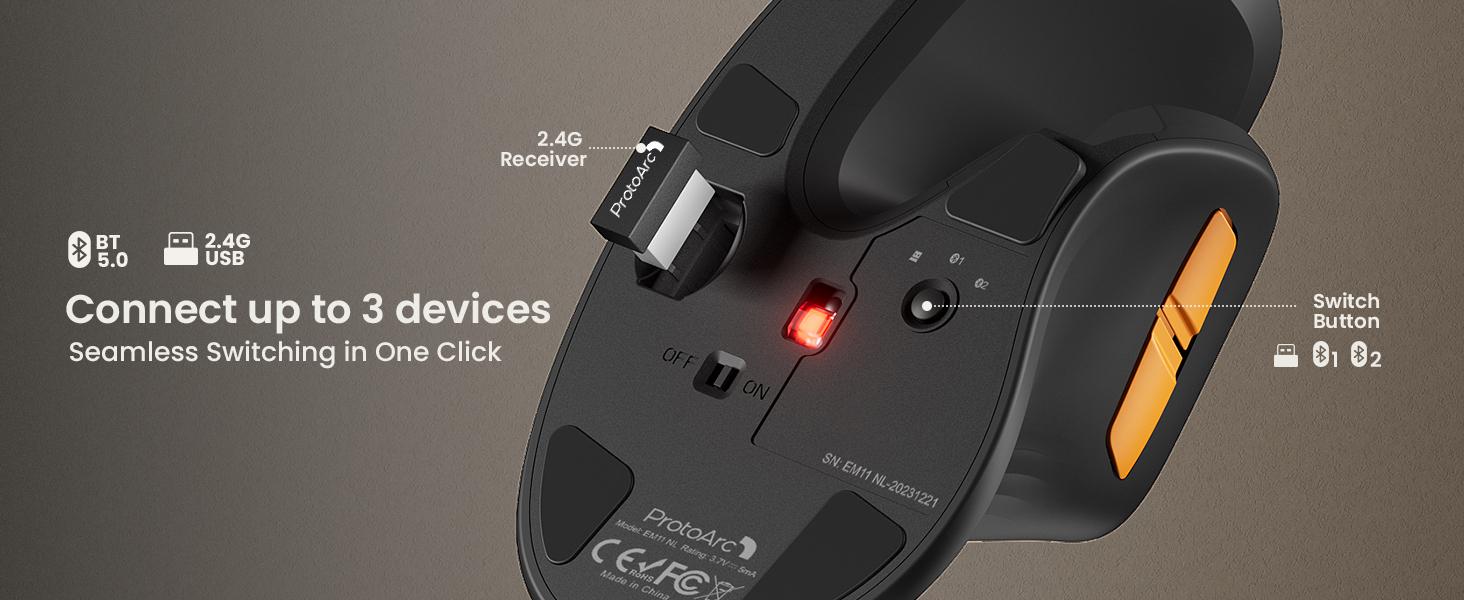
Get a USB extension cable. This inexpensive fix (often around $5) works in about 80% of cases. Plug your mouse receiver into a 3 to 6 foot extension cable, then position it on your desk near where your hand moves the mouse. Keep it at least 8 inches from USB 3.0 ports and cables. Moving the receiver just 10 inches away cuts RF noise by 90%. Don't run the extension cable parallel to USB 3.0 cables.
Try Bluetooth mode. Does your mouse support both dongle and Bluetooth? Switch to Bluetooth. It hops between 79 channels in the 2.4GHz band, jumping to cleaner frequencies when interference hits. Dongles get stuck on one polluted channel. While this may add 5-10 ms of latency, the difference is usually unnoticeable for general office work.
Unplug major interference sources. External SSDs are the worst offenders during file transfers because maximum data throughput creates maximum RF noise. USB 3.0 hubs multiply interference by concentrating multiple devices. Phone charging cables and monitors with USB passthrough create constant medium-level noise. Start by disconnecting drives and hubs when you need precise cursor control.
Fix Low Battery Signal Problems
Battery management stops voltage-related lag before it starts.
Replace batteries every 3 months. Alkaline batteries last 3 to 6 months but lose voltage gradually. Don't wait for the mouse to stop working completely. That intermittent lag happens when voltage drops near 1.2V even though the mouse still turns on. Keep spare batteries in your desk. When lag appears, swap them instantly instead of troubleshooting.
Fix Surface Tracking Issues
The right surface gives your optical sensor clean data.
Use a fabric mousepad. Matte fabric with rubber backing works best because the surface scatters light predictably. Get one at least 10 inches wide for comfortable movement. It's best to avoid glass, plastic, or glossy pads.No mousepad? A manila folder, notebook cover, or printer paper taped together works temporarily. Just keep it flat.
Advanced Settings to Improve Your Office Mouse Performance
Software tweaks and smart positioning squeeze out extra performance once hardware fixes are in place.
Turn Off Windows Pointer Acceleration
Open Settings, then Bluetooth & Devices, then Mouse, and finally Additional Mouse Settings. Uncheck "Enhance pointer precision." This feature applies acceleration that makes lag more noticeable. When your mouse skips packets due to interference, acceleration exaggerates the jump distance. Keep pointer speed at the middle setting, which is the 6th notch. Higher sensitivity settings can amplify the perception of lag.
Adjust Your Mouse Polling Rate
Polling rate determines how often your mouse reports position and is measured in Hertz (Hz). Most office mice use 125Hz, which means 8ms updates. Higher rates like 500Hz or 1000Hz drain batteries faster but provide smoother cursor movement. If your mouse software allows polling rate changes, try 250Hz as a middle ground. This reduces the time window during which interference can cause stuttering, without significantly impacting battery life. Not all wireless mice expose this setting, so check your manufacturer's software.
Use USB 2.0 Ports for Your Wireless Mouse
Most laptops have a mix of USB 2.0 and USB 3.0 ports.USB 2.0 ports, which usually lack the blue interior plastic, generate minimal RF interference. Reserve one USB 2.0 port for your mouse dongle if you can't use an extension cable. On desktops, rear motherboard USB ports often have better shielding than front panel ports. The extra cable distance from internal components helps too.
Position Your Desk Setup to Reduce Interference
Keep your mouse hand side of the desk clear of USB 3.0 devices. Route cables behind your monitor instead of across your mouse area. If using a docking station, position it on the opposite side of your keyboard from your mouse hand. Metal desk accessories like lamps and monitor arms can reflect RF interference unpredictably, so leave a buffer zone around your mouse and receiver.
Fix Your Wireless Mouse Lag Now
Stop accepting cursor stutter. A USB extension cable will eliminate most of this interference in a matter of minutes. New batteries and a mouse pad take care of the rest. Such simple solutions will solve 90% of problems with a wireless mouse. Test your setup now. Move the receiver away from potential sources of interference. Your productivity requires a responsive cursor.
FAQs
Q1. Can I Use My Wireless Mouse on a Glass Desk Without a Mousepad?
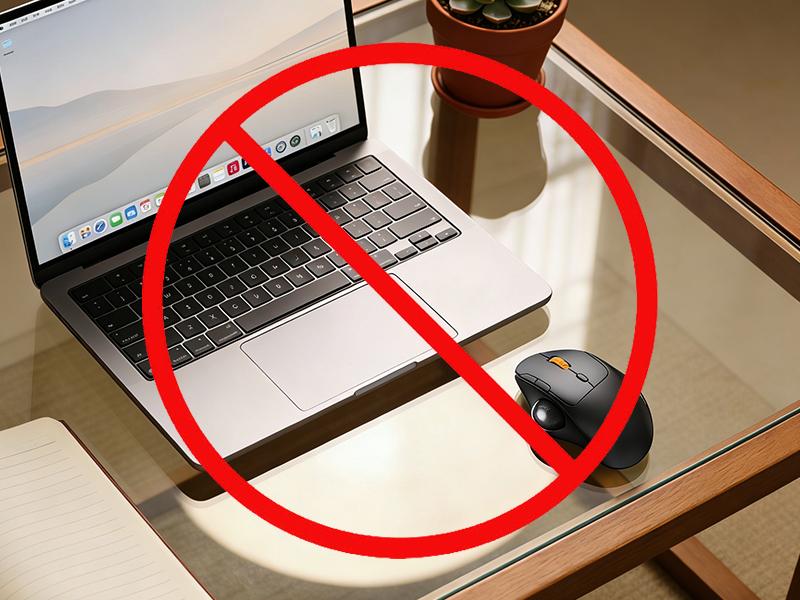
No. Glass tops are even worse for optical mice. A transparent and reflective surface confounds the sensor completely. The LED light passes through or reflects unpredictably. Mousepad – this is a necessity. A matte fabric pad will immediately eliminate this problem.
Q2. Why Does My Wireless Mouse Lag Only When Using Video Calls?
Video conferencing software transmits a lot of data using USB ports as well as WiFi connectivity. This interferes with your webcam if it has a USB 3.0 connection. Further, your WiFi data interferes with your mouse that works in the 2.4GHz band. Try changing your mouse to use Bluetooth technology. Move your webcam receiver away from your mouse.
Q3. Will a Wireless Mouse Work Through a Monitor or Laptop Screen?
The wireless mouse signal has difficulty getting through metal and thick substances. The screen of a laptop and a monitor can effectively shield 2.4GHz wireless signals. Hiding your receiver under your monitor or closing your laptop with your receiver inside means that your connection will break. For best results, place the receiver so it has a clear line of sight to your mouse.
Q4. Can Multiple Wireless Mice Interfere With Each Other?
Yes, if using the same 2.4GHz band. In common office spaces where dozens of wireless mice are used, dongle conflicts can occur on the same channels. This problem is mitigated in Bluetooth mice that use frequency hopping techniques.


