








FAQ - XKM01 Pro
À propos de la connexion
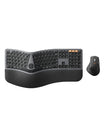
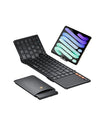
Le clavier XKM01 Pro dispose d'une conception intelligente à détection automatique et ne possède pas de bouton d'alimentation physique. Il suffit de déplier le clavier pour l'allumer, et de le plier pour l'éteindre.
Veuillez suivre ces étapes :
- Assurez-vous que la souris est actuellement réglée en mode 2.4G.
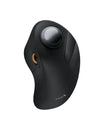
- Appuyez simultanément sur la molette de défilement (clic du milieu), le clic gauche et le clic droit et maintenez-les enfoncés pendant 5 secondes jusqu'à ce que le voyant indicateur du canal 2.4G commence à clignoter.
- Branchez le récepteur USB 2.4G sur votre appareil. La souris s'associera automatiquement et établira une connexion.
- Appuyez sur le bouton de commutation de canal situé sous la souris pour sélectionner le canal BT1 ou BT2.
- Une fois sélectionné, appuyez et maintenez le bouton de commutation de canal enfoncé pendant 5 secondes. Le voyant indicateur Bluetooth correspondant commencera à clignoter rapidement.
- Ouvrez les paramètres Bluetooth de votre appareil, recherchez la souris et sélectionnez-la pour finaliser la connexion.
Veuillez suivre cette séquence exacte :
- Branchez le récepteur USB dans le port USB de votre appareil.
- Dépliez le clavier pour l'allumer.
- Appuyez simultanément sur les touches Échap et += et maintenez-les enfoncées pendant 3 secondes pour entrer en mode d'appairage. Le voyant du mode USB commencera à clignoter.
- Débranchez et réinsérez rapidement le récepteur USB dans votre appareil pour terminer le processus de réassociation.
- Pliez le clavier pour l'éteindre.
- Appuyez simultanément sur les touches ESC + 3. Remarque : Utilisez la touche numérique 3 de la zone principale du clavier, PAS le pavé numérique.
- Tout en maintenant ces deux touches enfoncées, dépliez le clavier pour l'allumer. Maintenez-les enfoncées jusqu'à ce que les voyants Verr Maj, 2.4G, BT1 et BT2 clignotent tous rapidement.
- Une fois réinitialisé, vous pouvez resélectionner le canal Bluetooth souhaité pour connecter votre appareil normalement.
À propos de la charge et de la gestion de la batterie
- Alerte de batterie faible : Lorsque la batterie est faible, le voyant indicateur de batterie faible correspondant sur le clavier ou la souris clignotera rapidement.
- Comment charger : Branchez l'extrémité Type-C du câble de charge sur la souris ou le clavier, et connectez l'extrémité USB-A à un ordinateur ou à une source d'alimentation. Le voyant restera rouge fixe pendant la charge.
- Entièrement chargé : Une fois la batterie complètement chargée, le voyant passera au vert fixe.
Note importante : Une batterie faible peut provoquer des décalages, des saccades du curseur ou des déconnexions temporaires. Veuillez charger vos appareils rapidement pour maintenir des performances optimales.
Mode veille et réveil
Pour économiser l'énergie, les appareils passeront automatiquement en mode veille et éteindront leurs voyants indicateurs lorsqu'ils sont inactifs :
- Mode 2.4G : Entre en mode veille après 10 minutes d'inactivité.
- Mode Bluetooth : Entre en mode veille après 60 minutes d'inactivité.
- Comment réveiller : Il suffit d'appuyer sur n'importe quelle touche pour réveiller le clavier, ou de bouger la souris pour la réveiller. Les appareils se reconnectent généralement en 3 secondes.
Conseil : Si l'appareil met plus de 3 secondes à répondre ou ne se réveille pas, veuillez vérifier si la batterie est faible ou assurez-vous que la connexion sans fil/Bluetooth est stable.
Dépannage général (déconnexion / décalage / problèmes de synchronisation)
Veuillez essayer les étapes de dépannage suivantes :
- Charger l'appareil : Branchez-le à une source d'alimentation et assurez-vous qu'il est entièrement chargé.
- Vérifier le mode : Vérifiez que le voyant lumineux du canal correspondant clignote pour vous assurer que l'appareil est dans le bon mode.
- Dépanner le récepteur USB : Débranchez le récepteur USB et essayez de l'insérer dans un autre port USB de votre ordinateur pour exclure un port défectueux.
- Dépanner le Bluetooth : Supprimez/Oubliez le clavier/la souris de l'historique Bluetooth de votre appareil, redémarrez votre ordinateur, tablette ou téléphone, et recommencez le processus d'appairage Bluetooth depuis le début en suivant le guide ci-dessus.
- Test croisé : Essayez de connecter le clavier/la souris à un autre ordinateur ou appareil. S'il fonctionne correctement sur le deuxième appareil, le problème peut provenir d'un pilote ou d'une compatibilité système sur l'appareil d'origine.
- Réinitialisation matérielle : Si le problème persiste, effectuez une réinitialisation matérielle sur les canaux 2.4G ou Bluetooth en suivant les étapes de la section 2.
Pour la souris : Assurez-vous qu'elle est entièrement chargée. Si elle ne commute toujours pas, réinitialisez l'appairage 2.4G et Bluetooth de la souris. Pour le mode Bluetooth, supprimez les anciens enregistrements d'appairage de votre appareil, redémarrez-le et réessayez.
Pour le clavier : Pliez le clavier pour l'éteindre. Appuyez simultanément sur ESC + 3 et maintenez-les enfoncés, puis dépliez le clavier pour l'allumer. Relâchez les touches une fois que tous les voyants clignotent rapidement, puis essayez de changer de canal.
À propos des touches, des fonctions et des problèmes de molette de défilement
Pour utiliser les raccourcis multimédias, tels que le contrôle du volume et la luminosité, appuyez d'abord sur les touches FN + ÉCHAP pour activer le mode de verrouillage FN. Une fois verrouillées, appuyer sur les touches de la rangée supérieure déclenchera directement leurs fonctions multimédias respectives.
Note importante sur la compatibilité système : Le clavier XKM01 Pro est entièrement compatible avec macOS lorsqu'il est connecté via Bluetooth. Cependant, si vous vous connectez via le récepteur USB (mode 2.4G), certaines fonctions de raccourci spécifiques à macOS peuvent ne pas être entièrement prises en charge. Nous vous recommandons fortement d'utiliser le mode Bluetooth lorsque vous utilisez un Mac.
- Redémarrez votre appareil : Un simple redémarrage du système peut souvent résoudre les problèmes mineurs de communication des pilotes.
- Nettoyez la molette de défilement : La poussière ou les débris piégés à l'intérieur peuvent bloquer le capteur optique. Essuyez la molette avec un chiffon non pelucheux légèrement imbibé d'alcool à friction, ou utilisez un sèche-cheveux en mode FROID pour souffler les particules piégées.
- Chargez entièrement la souris : Des niveaux de batterie faibles ont un impact direct sur la sensibilité du capteur.
- Test matériel : Connectez la souris à un autre ordinateur pour déterminer si le problème est lié au matériel.
Accessoires et remplacements
Oui. Si vous avez perdu votre récepteur d'origine, vous pouvez acheter un remplacement universel directement sur notre site officiel :
