






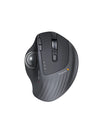

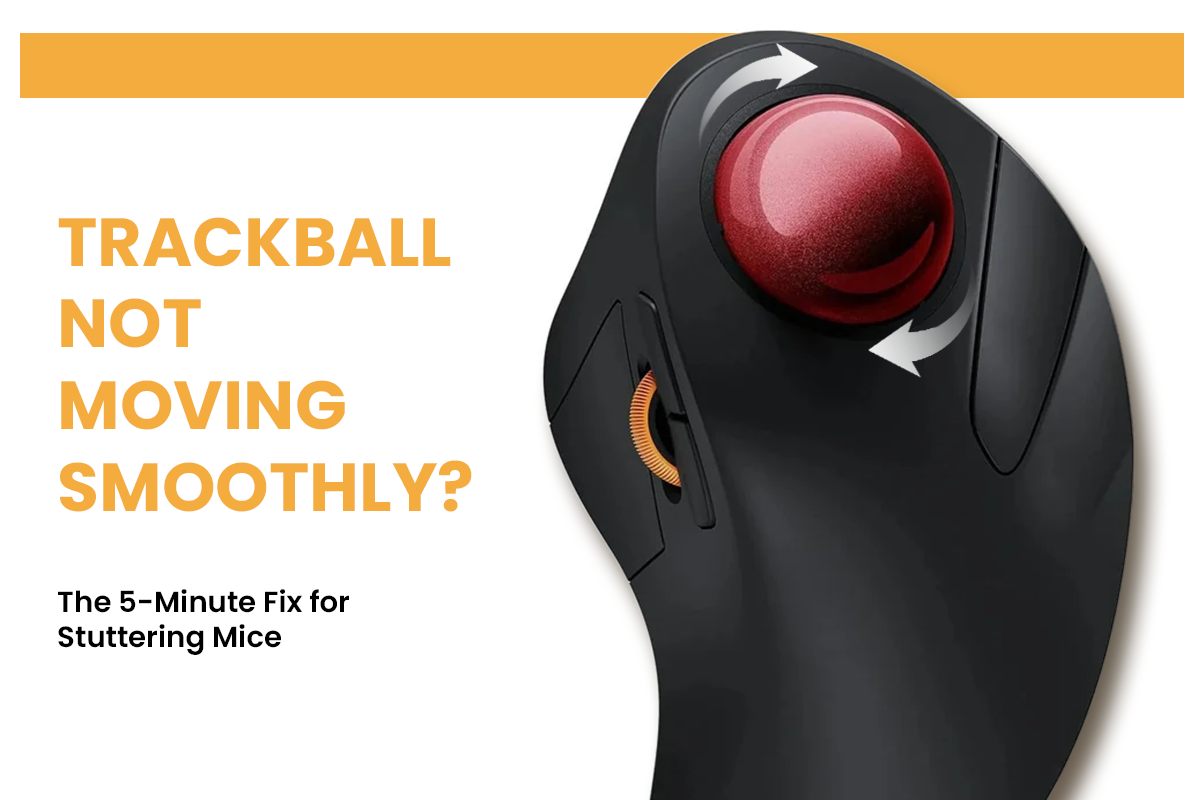
Eine stotternde Trackball-Maus stört die reibungslose Steuerung, die Sie von Ihrem Gerät erwarten. Wenn der Cursor springt und hüpft, liegt dies meist an Staub und Hautölen, die sich an den Lagern und am Sensor ansammeln, und nicht an Softwareproblemen.
Die meisten Tracking-Probleme lassen sich mit einer einfachen, fünfminütigen Reinigung beheben, die keine technischen Kenntnisse oder speziellen Werkzeuge erfordert. So entfernen Sie den Schmutz und stellen eine präzise Navigation wieder her.
Häufige Gründe, warum eine Trackball-Maus nicht reibungslos funktioniert
Bevor Sie zum Schraubenzieher greifen, sollten Sie herausfinden, warum die Bewegung eingeschränkt ist. Die meisten Probleme mit einer Trackball-Maus sind mechanischer Natur. Der Ball nimmt von Natur aus Schmutz von Ihrer Haut und der Umgebung auf, da er in einer Fassung liegt.
- Angesammelter Schmutz: Hautöle und Staub bilden „Schmutz“ auf den kleinen Lagern, den winzigen Auflagepunkten, die ein freies Rollen des Balls ermöglichen.
- Sensorblockade: Der optische Sensor, die lichtbasierte Komponente, die Bewegungen verfolgt, kann durch ein einziges verirrten Haar oder einen Fussel blind werden.
- Signalstörungen: Bei drahtlosen Modellen können andere elektronische Geräte die Verbindung zwischen Maus und Computer stören.

Einfache Schritte zur Reinigung Ihrer Trackball-Maus für maximale Leistung
Die Wiederherstellung der Geschmeidigkeit ist ein unkomplizierter Prozess, der keine speziellen Werkzeuge erfordert. Befolgen Sie diese Checkliste, um die physikalischen Hindernisse für die Bewegung zu entfernen und die optische Präzision Ihres Geräts wiederherzustellen.
- Kugel entfernen: Bei den meisten Geräten können Sie die Kugel mit dem Finger oder einem Stift von unten herausdrücken.
- Lager reinigen: Verwenden Sie Ihren Fingernagel oder ein trockenes Tuch, um die graue oder weiße Kruste von den drei winzigen Lagern in der Fassung abzukratzen.
- Kugel abwischen: Polieren Sie die Kugel selbst mit einem Mikrofasertuch, bis sie glänzt. Dadurch wird sichergestellt, dass kein Widerstand an den internen Sensoren entsteht.
- Optischen Anschluss reinigen: Verwenden Sie einen Druckluftstoß, um Schmutz vom optischen Sensor zu entfernen, dem „Auge“ der Trackball-Maus.

Beste Software-Einstellungen für eine stotternde Trackball-Maus
Wenn die Hardware sauber ist, der Cursor aber immer noch nicht richtig funktioniert, liegt das Problem wahrscheinlich an den Einstellungen Ihres Betriebssystems. Die folgende Tabelle zeigt die Unterschiede zwischen den beiden wichtigsten Softwareänderungen, die das Gefühl Ihrer Maus beim Gebrauch beeinflussen.
|
Einstellungsname |
Hauptfunktion |
Am besten geeignet für |
|
Passt die Hardware-Empfindlichkeit des Sensors an |
Hochauflösende Bildschirme |
|
|
Zeigerbeschleunigung |
Ändert die Geschwindigkeit basierend darauf, wie schnell Sie die Kugel bewegen |
Dynamische Bearbeitung und Gaming |
Durch Anpassen dieser Schalter können Sie die Reaktion Ihrer Trackball-Maus auf Ihre spezifischen Handbewegungen anpassen. Sie sollten ein Gleichgewicht finden, bei dem sich der Cursor vorhersehbar bewegt, ohne übermäßige Kraftaufwendung zu erfordern.
Richtige Oberfläche und Schreibtisch-Setup für Ihre Trackball-Maus
Die Umgebung Ihres Arbeitsplatzes spielt eine stille Rolle dabei, wie gut Ihre Maus funktioniert. Im Gegensatz zu einer herkömmlichen Maus bleibt ein Trackball stationär, benötigt aber dennoch eine stabile Unterlage.
- Feste Nivellierung: Stellen Sie sicher, dass Ihr Gerät auf einer flachen, rutschfesten Oberfläche steht. Jedes leichte Wackeln der Basis kann zu ruckartigen Bewegungen auf dem Bildschirm führen.
- Empfängerplatzierung: Wenn Sie einen kabellosen Dongle verwenden, den kleinen USB-Stecker, der Signale empfängt, platzieren Sie ihn so nah wie möglich an der Trackball-Maus. Vermeiden Sie es, ihn an einen USB-Hub anzuschließen, da dies zu Verzögerungen oder Stromschwankungen führen kann.
- Akkuzustand: Geringe Leistung führt oft dazu, dass der Sensor "ruckelt", da er versucht, Energie zu sparen. Überprüfen Sie regelmäßig Ihren Ladezustand, um eine konsistente Verbindung aufrechtzuerhalten.

Langfristige Wartungstipps für eine reibungslose Trackball-Maus
Die Aufrechterhaltung einer hochleistungsfähigen Trackball-Maus erfordert eine konsequente Pflege und keine gelegentlichen Tiefenreinigungen. Kleine Gewohnheiten verhindern, dass sich "Schmutz" wieder bildet und halten Ihre Navigation mühelos. Die Centers for Disease Control and Prevention (CDC) bieten Einblicke, wie das Design von Computermäusen die Handgelenkshaltung und die Gesundheit der oberen Extremitäten beeinflusst.
- Handhygiene: Waschen Sie Ihre Hände vor längeren Sitzungen, um die Übertragung von Ölen und abgestorbenen Hautzellen auf die Balloberfläche zu minimieren.
- Wöchentliches Abwischen: Führen Sie eine schnelle wöchentliche Reinigung der Fassung und der Lager durch, auch wenn sich die Bewegung derzeit gut anfühlt.
- Umgebungskontrolle: Halten Sie Ihren Schreibtischbereich frei von Staub und Tierhaaren, um die Menge an Schmutz zu reduzieren, die in den internen Mechanismus gelangt.
- Sensorschutz: Vermeiden Sie es, den optischen Sensor direkt mit den Fingern zu berühren, um Ölspuren zu verhindern, die das Tracking-Licht trüben könnten.
Die Anwendung dieser einfachen Routinen hilft, die Aushärtung von Ablagerungen zu verhindern, was die zukünftige Wartung erheblich erleichtert und die Lebensdauer Ihrer Hardware verlängert. Für eine umfassendere Gesundheit am Arbeitsplatz beschreibt die OSHA Richtlinien zur Aufrechterhaltung eines gesunden und ergonomischen Arbeitsplatzes.
Fazit: Zurück zur reibungslosen Navigation
Ein sauberer Sensor und die richtige Einrichtung beheben die meisten Trackball-Probleme innerhalb weniger Minuten. Hören Sie auf, gegen einen klebrigen Cursor anzukämpfen, und genießen Sie die ergonomischen Vorteile, die diese Art von Maus bietet. Wenn diese Schritte das Problem nicht beheben, könnte ein tiefergehender Hardwarefehler vorliegen, der eine professionelle Reparatur oder einen Austausch erfordert. Für die meisten Menschen bringt jedoch eine grundlegende Wartung sofort die präzise, professionelle Leistung zurück. Medizinische Forschung unterstreicht die Bedeutung einer ordnungsgemäßen Funktion der Ausrüstung bei der Prävention von muskuloskelettalen Erkrankungen, die mit intensivem Mausgebrauch verbunden sind.
FAQs
Q1. Warum stottert meine Trackball-Maus nach der Reinigung immer noch?
Überprüfen Sie zuerst die Einstellungen in Ihrer Software. Für eine zuverlässigere Verfolgung schalten Sie die Zeigerbeschleunigung aus und reduzieren Sie die DPI, wenn kleine Bewegungen ruckartig wirken. Selbst bei einem sauberen Sensor können drahtlose Modelle aufgrund begrenzter Leistung verzögern; platzieren Sie den USB-Empfänger näher oder wechseln Sie die Batterien.
Q2. Wie oft sollte ich meine Trackball-Maus reinigen?
Wenn Sie den Ball und die Lager täglich benutzen, reinigen Sie diese einmal pro Woche. Um den Sensor sauber zu halten, führen Sie einmal im Monat eine gründlichere Reinigung durch. Wenn Sie ein Ruckeln oder Widerstand bemerken, reinigen Sie ihn sofort, anstatt auf Ihre regelmäßige Wartung zu warten.
Q3. Kann ich Reinigungsalkohol zum Reinigen der Lager verwenden?
Ja, Reinigungsalkohol ist hervorragend geeignet, um hartnäckige Ablagerungen zu entfernen. Befeuchten Sie damit ein Wattestäbchen oder Tuch, um Ball und Lager zu reinigen, sprühen Sie die Flüssigkeit jedoch niemals direkt in die Fassung. Lassen Sie keinen Alkohol auf den optischen Sensor gelangen; die Elektronik könnte beschädigt werden.
Q4. Was ist, wenn die Reinigung das Stottern nicht behebt?
Versuchen Sie zunächst einen alternativen USB-Anschluss oder wechseln Sie die Batterien. Die Lager oder der optische Sensor könnten abgenutzt sein, wenn das Problem weiterhin auftritt. An diesem Punkt müssen Sie die Hardware wahrscheinlich ersetzen, anstatt sie nur zu reparieren.