











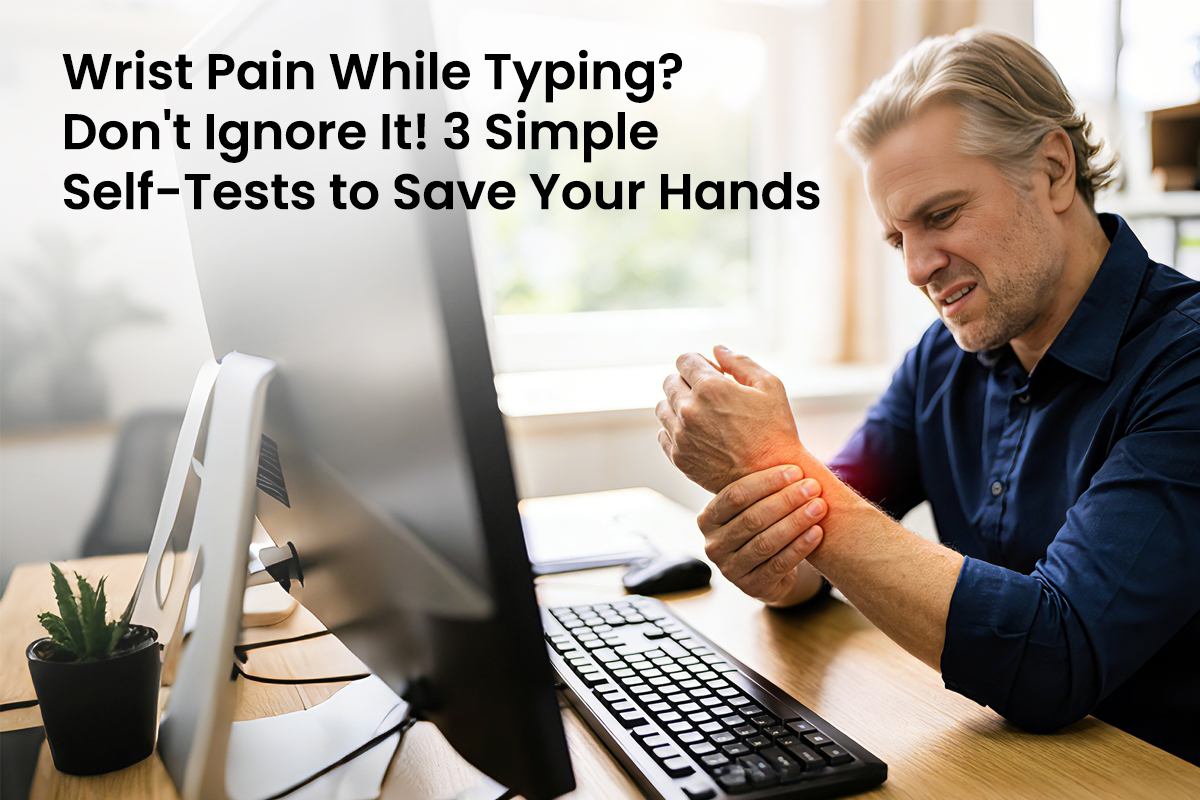
That sharp tingle in your palm or the dull ache at the base of your thumb is your body's alarm system going off in real-time. We spend hours tethered to a mouse and keyboard, often ignoring the subtle signals that something is wrong. Repetitive strain is not a badge of honor for hard work; it is a physical consequence of forcing human hands into rigid, unnatural shapes for too long. If you want to keep your career and hobbies pain-free, you must address the mechanical stress happening at your desk right now.
Why Your Keyboard and Mouse Setup Causes Chronic Wrist Pain
Standard office tools prioritize flat surfaces over human biology, forcing your joints to adapt to the machine. When you use a traditional keyboard, your forearms must rotate palms-down in a position called "pronation." This constant twisting, combined with the upward wrist angle required by a standard mouse, compresses the median nerve and restricts blood flow through the carpal tunnel.
- Static Muscle Loading: Holding one rigid position for hours prevents muscles from flushing out metabolic waste.
- Tendon Friction: Continuous micro-movements in a strained posture cause irritation in the connective tissue.
- Nerve Entrapment: Swollen tissues within the wrist canal squeeze nerves, leading to numbness and "pins and needles."

3 Simple Self-Tests to Check Your Hand Health
Early detection is the most effective way to prevent long-term injury. You can use these clinical provocative maneuvers to determine if your current keyboard and mouse habits are causing underlying nerve compression.
The Phalen's Maneuver
This test checks for Carpal Tunnel Syndrome by increasing pressure in the wrist canal. Press the backs of your hands together in front of your chest with your fingers pointing down and your elbows out. If you feel numbness or tingling in your thumb, index, or middle finger within sixty seconds, your median nerve might be compressed.
The Tinel's Sign Test
Locate the center of your inner wrist where the hand meets the arm. Use your other hand to firmly tap along the path of the nerve. A positive sign occurs if you feel a "shock" or tingling sensation shooting into your fingers. This often indicates that the nerve is irritated or inflamed from poor ergonomics.
The Durkan Carpal Compression Test
Many specialists consider this the most accurate self-screen for carpal tunnel issues. Use your thumb to apply firm, direct pressure to the center of your wrist for about thirty seconds. If your usual pain or numbness appears during this window, the space inside your wrist has become too crowded to protect the nerve during daily typing tasks.

How a Vertical Mouse Helps You Return to the Pain-Free Position
Modern vertical designs do more than just tilt your hand; they re-engineer how you navigate your digital world.
Embracing the Handshake Position
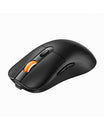
A vertical mouse keeps your hand in a "neutral posture," which is exactly how your arm rests when it is at your side. Instead of your palm facing the desk, it faces inward at a natural angle. This eliminates forearm pronation and reduces the pressure on the carpal tunnel. When your bones are stacked naturally, the muscles in your forearm can finally relax.
Precision Without the Strain
High-quality vertical mice allow you to adjust the DPI (Dots Per Inch), which refers to how sensitive the cursor is to your movement. By increasing sensitivity, you can move the cursor across the entire screen with tiny, effortless motions. This helps avoid the broad, repetitive arm sweeps that lead to shoulder fatigue, while multi-device switching ensures you stay comfortable even when jumping between different computers.

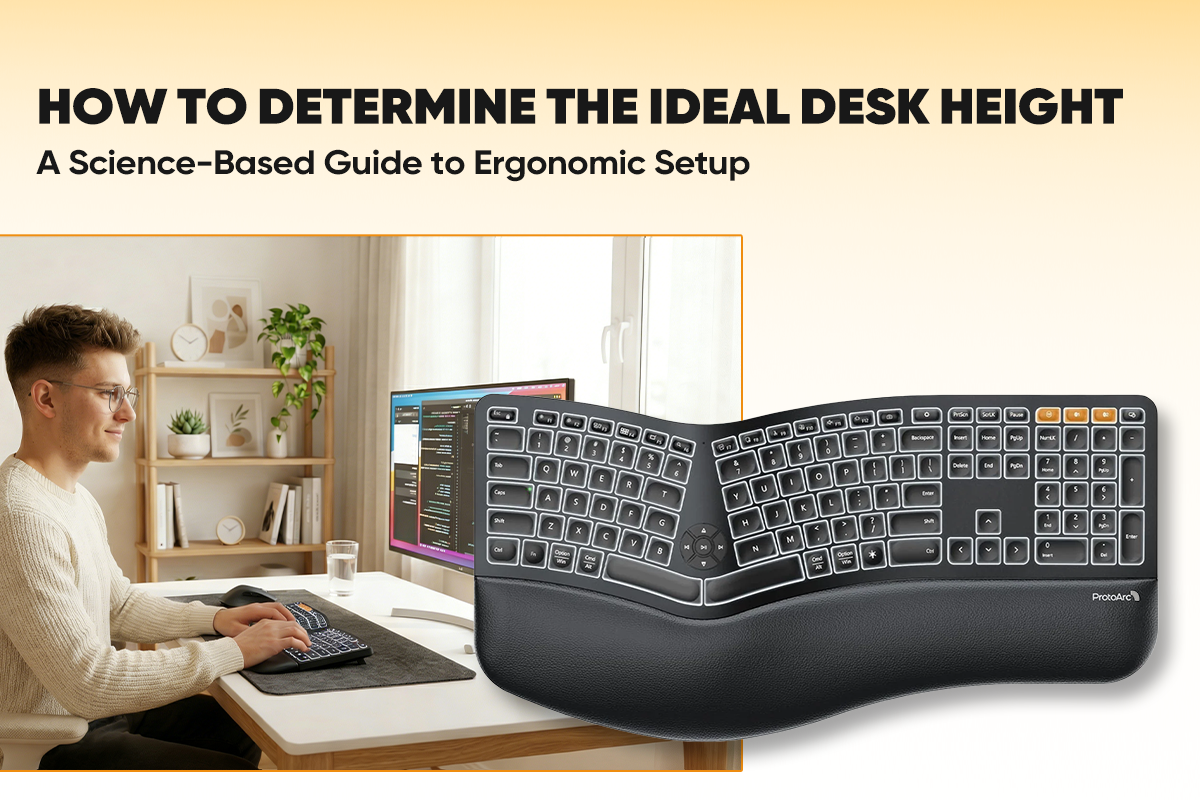
Is Your Keyboard Too Narrow? Why an Ergonomic Split Layout is Better
The width of your keyboard dictates the position of your entire upper body. Most standard models are too narrow for the average person's shoulders, leading to a cascade of postural issues.
| Keyboard Type | Hand Orientation | Impact on Shoulders |
| Standard Flat | Forced Inward (Ulnar Deviation) | Hunched and Rounded |
| Split Ergonomic | Straight and Neutral | Open and Relaxed |
As shown in the table above, the physical layout of your tools directly affects your posture. When you use a narrow keyboard, your wrists must bend outward toward your pinky fingers to reach the keys. This is called "ulnar deviation." Over time, this strains the outer wrist and causes your chest muscles to tighten, pulling your shoulders forward into a permanent hunch.
A split design combined with a cushioned wrist rest provides the ultimate defense. The split design allows your arms to stay at shoulder width, while the integrated padding supports the base of your palms. This combination keeps your wrists in a straight line and allows your shoulder blades to retract, opening up your chest and improving circulation while you work.
Combine Your Ergonomic Mouse and Keyboard with These 3 Healthy Habits
Great gear is only half the battle. To truly protect your longevity, you must change how you interact with your workspace throughout the day.
- Follow the 20-20-20 Rule: Every twenty minutes, look at something twenty feet away for twenty seconds. Use this time to drop your hands to your sides and shake them out to restore blood flow.
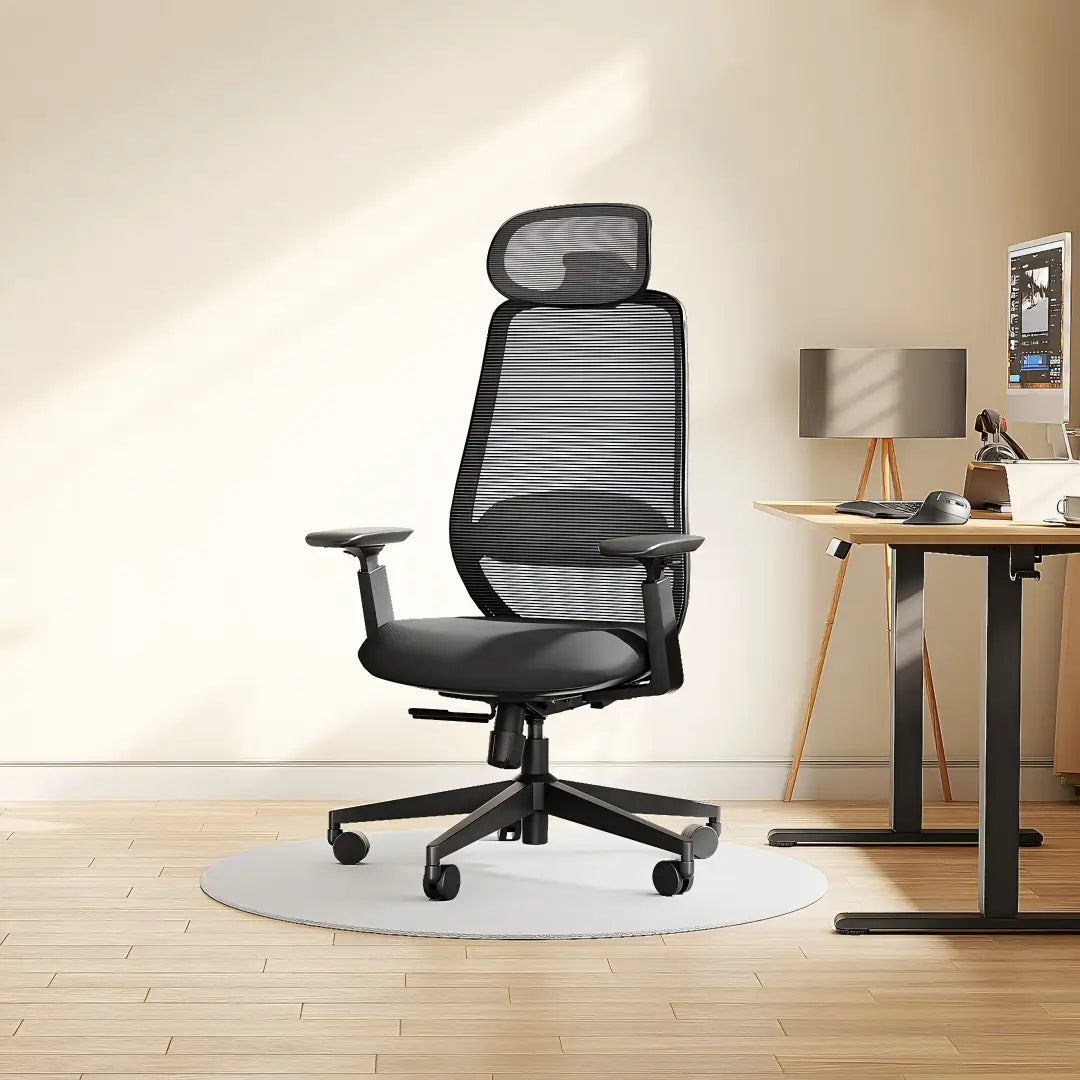
- Optimize Your Desk Height: Ensure your elbows are at a ninety-degree angle when using your mouse and keyboard. If your desk is too high, you will subconsciously lift your shoulders, creating tension that travels down to your wrists.
- Perform Dynamic Stretches: Gently extend your arm with the palm facing up and use your other hand to pull your fingers back toward your body. Hold for a few seconds and repeat with the palm facing down.
Upgrade Your Workspace to Protect Your Hands
Your wrists are trying to tell you something. If you're feeling pain, tingling, or numbness while typing, your current mouse and keyboard setup isn't working for your body. Small changes can make a huge difference. Switching to an ergonomic mouse and split keyboard puts your hands in their natural position, so you can work comfortably for years to come. Take the self-tests in this article, check your desk setup, and make the adjustments your hands need. Your future self will thank you.
FAQs
Q1. What Type of Mouse Should I Use If I Have Wrist Pain?
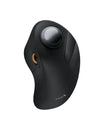
A vertical mouse or trackball mouse works best because it keeps your hand in a natural handshake position. This takes pressure off the nerve in your wrist and helps reduce pain during long work sessions.
Q2. Can An Ergonomic Keyboard Really Help My Shoulder Pain?
Yes. A split keyboard lets your arms stay naturally apart at shoulder width instead of squeezing inward. This stops your shoulders from hunching forward and makes typing feel more comfortable.
Q3. How Often Should I Check My Hands for Problems?
Test your hands every 2-3 months if you use a computer every day. Catching tingling or pain early means you can fix your mouse and keyboard setup before it turns into a serious problem.
Q4. Do I Really Need to Buy a New Keyboard and Mouse?
You can keep using standard equipment if you take breaks and sit properly, but it's hard to do this perfectly for 8 hours. An ergonomic keyboard and mouse automatically keep your hands in the right position without you having to think about it.