





FAQ - SM002 Unifying USB Receiver
About USB Dongle Purchase & Pairing
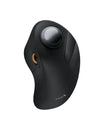
- Mouse: EM01
- Keyboard: EK01/EK01 Plus
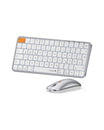
- Combo: EKM01/EKM01 Plus/XMK01
If your product is one of the products mentioned above, please provide us with your order information and a photo of the back of the product (support@protoarc.com).
We will check the S/N number of the product and help you confirm whether there is a matching USB dongle for sale.
- Mouse: EM01 NL/EM04/EM05/EM05 NL
- Combo: XKM01 LX
If your product is one of the products mentioned above, please purchase the USB dongle through this link: https://www.protoarc.com/products/sm002-usb-receiver
Please re-pair the keyboard or mouse with the new USB dongle by following the below steps before using the new USB dongle (please make sure the keyboard or mouse is currently in 2.4G mode).
Mouse:- Press and hold the middle scroll button and the left and right click buttons simultaneously for 5 seconds until the 2.4G indicator light flashes.
- Insert the 2.4G USB dongle into your device, and the mouse is re-paired with the new USB dongle.
- Insert the USB dongle;
- Turn on the keyboard, and press Esc and +/= buttons for 3 seconds to enter pairing mode, if you see the USB mode indicator light flashing, then the keyboard has entered the pairing mode.
- Once the keyboard has entered the pairing mode, quickly unplug and plug in the USB dongle.
- And there we repaired the keyboard with the USB dongle.
If the keyboard and mouse cannot work after re-pairing, please contact us (support@protoarc.com) for further solutions.
We do not have separate USB dongles for other models right now.