













FAQ - KM90-A
About KM90 A Connection
How do I re-pair the keyboard and mouse via Bluetooth?
Keyboard:
- Turn off the keyboard.
- Press and hold ESC + 3, then turn on the keyboard while holding.
- Channel indicator flashes quickly, then stays solid.
- Release buttons.
- Select channel and pair with your device.
- If name not found → toggle Bluetooth on/off and retry.
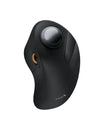
Mouse:
- Turn off mouse.
- Press and hold scroll wheel button, turn on mouse.
- Channel indicator starts flashing.
- Release after ~3 seconds.
- Select channel and pair.
- If name not found → toggle Bluetooth and retry.
Notes:
- If keyboard fails to connect, restart Bluetooth or delete duplicate device names.
- Use channel button to switch paired devices.
- Keyboard remembers last channel after power cycle.
- macOS only — not compatible with Linux, Windows, or Windows on Mac.
- Devices before 2013 or macOS < 10.12 are not supported.
Keyboard Issues
What should I do if the keyboard has connection or pairing issues?
- Unsupported: Devices before 2013 or macOS below 10.12.
- Ensure keyboard is fully charged.
- Check whether the channel indicator flashes correctly.
- Delete Bluetooth record & restart device.
- Re-pair keyboard following instructions.
- Try another device to check if issue persists.
- If still unresolved → reset keyboard Bluetooth.
What should I do if some keys do not work, typing is delayed, or keys repeat unexpectedly?
- Charge keyboard fully; low battery affects performance.
- Delete keyboard from Bluetooth list, restart computer.
- Re-pair keyboard:
- Enter pairing mode → search → select KM90-A Keyboard.
- Test another device to isolate the issue.
Mouse Issues
What should I do if the mouse has connection or pairing issues?
- Unsupported: Macs before 2013 or macOS below 10.12.
- Ensure mouse is fully charged.
- Confirm correct mode based on channel indicator.
- Glass/smooth surfaces may cause lag → use mouse pad.
- Delete mouse’s Bluetooth record & restart device.
- Re-pair the mouse.
- Test with another device to determine root cause.
Mouse Scroll Wheel Not Working
- Restart computer and reconnect mouse.
- Clean scroll wheel with alcohol cloth; blow debris with cool air.
- Ensure mouse is fully charged.
- Try another device to isolate issue.
About KM90 A Charging
How do I charge the device?
- Low battery indicator flashes red until shutdown.
- Charge via Type-C → USB-A (indicator stays red while charging).
- Full charge: approx. 3-4 hours → indicator turns green.
- Low battery may cause lag — charge promptly.
Sleep Mode
What is the sleep mode behavior?
- Inactive for 60 minutes → automatic sleep mode.
- Press any key to wake within 3 seconds.
Backlight Adjustment
Backlight Adjustment Guide
- Press Fn + Shift to adjust brightness:
- 1st press → 30%
- 2nd press → 60%
- 3rd press → 100%
- 4th press → OFF
Notes:
- No operation for 2 minutes → backlight turns off automatically.
- No operation for 60 minutes → enters sleep mode, backlight stays off.
- After waking from sleep → backlight must be manually reactivated.
About KM90 A Multimedia Function Keys
Function Key Mapping
- Key icons = default multimedia functions.
- F1-F12 require Fn + F-key.
About KM90 A Keyboard Keys
Screenshot Key & Numeric Keypad
- Disable screenshot key (Cmd + 3): macOS → Settings → Keyboard → Keyboard Shortcuts → Screenshots → uncheck Command + 3.
- Enable/Disable numeric keypad: Press the Clear key.
