













FAQ - KM110-A
About KM110 A Connection
How do I re-pair the keyboard and mouse via Bluetooth?
Keyboard:
- Turn off keyboard → press & hold ESC + 3 → turn on while holding → light flashes rapidly then stays solid → release buttons.
- Select Bluetooth channel & connect. If Bluetooth name not found, toggle Bluetooth off/on.
Mouse:
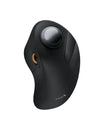
- Turn off mouse → press & hold scroll wheel button → turn on → release after 3 seconds.
- Select Bluetooth channel & connect; toggle Bluetooth if name not found.
Notes:
- If the keyboard doesn’t connect, restart Bluetooth or delete duplicate device names.
- Channel button allows switching between paired devices.
- Keyboard remembers last connected channel after power off/on.
- OS Compatibility: macOS only. Not compatible with Linux, Windows, or Windows-on-Mac.
- Devices before 2013 or macOS below 10.12 are not supported.
Keyboard Issues
What should I do if the keyboard has connection or pairing issues?
- Unsupported: Macs before 2013 or macOS below 10.12.
- Ensure keyboard is fully charged.
- Confirm correct channel (indicator flashes appropriately).
- Delete Bluetooth record & restart device.
- Re-pair following normal pairing procedure.
- Try connecting to another device to check if issue persists.
- If still unresolved, reset Bluetooth connection.
What should I do if some keys do not work, typing is delayed, or keys repeat unexpectedly?
- Charge keyboard fully (low battery affects performance).
- Delete Bluetooth history & restart Mac.
- Re-pair keyboard:
- Enter pairing mode → search → select KM110-A Keyboard.
- Try another device to confirm if issue is keyboard or system related.
Mouse Issues
What should I do if the mouse has connection or pairing issues?
- Unsupported: Macs before 2013 or macOS below 10.12.
- Ensure mouse is fully charged.
- Confirm correct Bluetooth channel mode.
- Smooth/glass surfaces may affect tracking—use a mouse pad.
- Delete Bluetooth record & restart device.
- Re-pair mouse.
- Try another device to determine issue origin.
Mouse Scroll Wheel Not Working Properly
- Restart computer & reconnect mouse.
- Clean scroll wheel with alcohol cloth; use cool air to blow debris.
- Charge mouse fully—low battery may affect scroll wheel.
- Test with another device to isolate issue.
About KM110 A Charging
How do I charge the device?
- Low battery: indicator flashes red until device shuts off.
- Charge via Type-C to keyboard/mouse; USB-A to computer. Indicator stays red.
- Full charge: approx. 3-4 hours → indicator turns green.
- Low battery may cause lag—charge promptly.
- If long uncharged, over-discharge may prevent power-on; charge 10 minutes or replug multiple times to activate protection IC.
Sleep Mode
What is the sleep mode behavior?
- No use for 60 minutes → sleep mode.
- Press any key to wake within 3 seconds.
About KM110 A Multimedia Function Keys
Function Keys
- Direct key presses control multimedia functions.
- F1-F12 require Fn + F-key.
About KM110 A Keyboard Keys
Keyboard Key Settings
- Disable screenshot key (Cmd + 3): macOS → System Settings → Keyboard → Shortcuts → Screenshots → disable Command + 3.
- Enable/Disable numeric keypad: Press the “Clear” key.
