







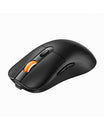




FAQ - EM15
Faq - EM15
Differences between EM15 and EM15 Bluetooth Version
- Connection methods:
EM15 only supports 2.4G connection(USB A & Type-C receiver)
EM15 Bluetooth Version supports Bluetooth and 2.4Gconnection(Nano USB & Type-C receiver)
Sleep Mode
- When the mouse is not used for more than 60minutes, it will automatically enter sleep mode and the indicator light will turn off.
- When using the mouse again, just press any key, the mouse will wake up within 3seconds, and the lights come back on and the mouse starts working.
About EM15 Connection
How do I pair the mouse with the Nano USB & Type-C receiver?
- Turn on the power switch to ON.
- Take out the USB /Type-C receiver.
- Press the channel switch button until the white light USB is on and enter 2.4GUSB /Type-C channel.
- lnsert the USB /Type-C receiver into your computer's USB /Type-C port.
How do I pair the mouse with Bluetooth?
- Turn on the power switch to ON.
- Press the Bluetooth channel switch button until the Bluetooth indicator light is on, and he mouse enters the Bluetooth channel. Long-press the channel switch button for 3-5seconds again, until the light flashes quickly, then the mouse enters the Bluetooth pairing mode.
- Turn on the Bluetooth settings on your device, search or select ProtoArc EM15, and start Bluetooth pairing until the connection is completed.
How do I re-pair in 2,4G mode and Bluetooth mode?
In 2.4G mode:
- Short-press the channel switch button to switch to 2.4G/Type-C mode
- Press and hold the middle scroll wheel and left and right buttons for 5 seconds until the 2.4G/Type-C indicator flashes quickly.
- Insert the 2.4G USB/Type-C receiver into the device, and the mouse will automatically connect to the device.
In Bluetooth mode:
- Turn off the mouse
- Press and hold the mouse scroll wheel and turn it on for about 5 seconds. Release it after the channel indicator flashes quickly.
About EM15 Charging
How do I charge the device?
- When the mouse power is low, the charging indicator and the corresponding channel indicator flash until turned off.
- Insert the Type-C charging cable into the mouse, and the red light stays on during charging.
- The charging time is about 1-3.5 hours, and the indicator light will turn green after being fully charged.
- Please use the charging cable included with the mouse to charge. If using another charging cable, please make sure it is a USB-A to Type-C cable
How do I deal with disconnection issues, clicking delay?
- Please ensure that the mouse is fully charged. A low battery can affect the performance of the mouse.
- If using a USB dongle to connect the mouse to the device, unplug and replug the USB dongle, trying a different USB port if necessary.
- If connecting the mouse to the device via Bluetooth, delete the Bluetooth name from your device's Bluetooth connection list, restart your device, and re-pair the mouse by
- following the steps in the user manual.
- If the issues persist, try connecting the mouse to other devices to check if the same issues occur, and don't hesitate to contact our customer service for assistance.
What should I do if the mouse will not turn on or stops working?
- The rated charging voltage for the mouse is 5V. It is recommended to use the computer.
- Try to change another Type-C cable to confirm whether it is a cable issue or a fault with the mouse.
- If the power indicator of the mouse does not light up at all. Please do not hesitate to contact our customer service for assistance.
