





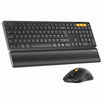



FAQ - K310 PRO
About Connection & Troubleshooting
If your keyboard loses connection or the connection becomes unstable, follow these steps to manually pair it again:
- Plug the USB receiver into your computer's USB port.
- Open Google Chrome or Microsoft Edge and go to the web driver page: www.hub.protoarc.com.
- Click on Settings, then select Pair New Receiver.
- Follow the on-screen prompts on the webpage to complete the re-pairing process.

If your devices cannot discover the keyboard's Bluetooth name, reset it using the following steps:
- Turn off the keyboard.
- Press and hold ESC + 3 (use the number 3 on the main keyboard, not the numeric keypad).
- While holding these two keys down, turn the keyboard back on. Keep holding them for 3-5 seconds, then release.
- Turn the keyboard off and on once more.
- Select your desired Bluetooth channel. The channel indicator light will flash rapidly, indicating it has entered pairing mode.
Tip: If the Bluetooth name still does not appear on your device, toggle your device's Bluetooth setting off and back on.
About Charging & Power Management
- Low Battery Warning: When the battery runs low, the green low-power indicator light will flash continuously until the keyboard automatically shuts down.
- How to Charge: Plug the included Type-C cable into the keyboard and connect the USB-A end to your computer.
- Charging Status: The green indicator light will stay solid while charging and turn off automatically once fully charged.
- Charging Time: A full charge cycle takes about 6-8 hours.
Note: When the battery is extremely low, you may experience input lag, stuttering, or freezing. Please plug in the power promptly to ensure normal performance.
About Backlight Modes & Settings
When the keyboard battery is low, the low-power indicator flashes and the backlight turns off automatically to preserve power. If your backlight is not working, please ensure the keyboard is fully charged. It is highly recommended to fully charge the device before first use.
The keyboard supports multiple lighting effects and smart features:
- 11 Backlight Modes: Wave, Waterfall, Bloom, Footmark, Breathing, Sine Light Wave, Spark, Ripple, Greedy Snake, Constant, and Customize Settings.
- Smart Sleep Mode: The backlight automatically enters sleep mode and turns off after 5 minutes of inactivity to save power.
- Memory Function: The keyboard saves your last configuration. When powered on again, it automatically restores your last used backlight mode, brightness, and speed.
- Default Factory Settings: Wave mode, 50% brightness, medium speed.
Language & Layout Configurations (UK Users)
To type correctly using the UK layout, you must set your host device's system keyboard language to English (UK). Here is how to configure it on mobile devices:
For Samsung Tablets:
- Go to Settings > General Management > Samsung Keyboard Settings > Languages and types > Manage input languages > Select English (UK).
For OPPO Phones:
- Go to Settings > Additional Settings > Keyboard & input method > Physical keyboard > K310 Pro > Set up keyboard layout > Select English (UK).
About Web Driver & Customization
To ensure successful keyboard customization, please confirm your setup meets the following specifications:
- Supported OS: Windows 8-11 or macOS 10.12 and above.
- Connection Method (Crucial): You must connect via the 2.4G USB receiver.
- Important: The configuration software does not support Bluetooth connections.
- Browser Requirement: Ensure a stable internet connection and use the latest version of Google Chrome, Microsoft Edge, or Opera.
- Compatibility: This software only supports specific ProtoArc models. Please consult your product manual to verify compatibility.
Due to macOS system security policies, you must manually grant "Input Monitoring" permissions to your browser before it can communicate with the keyboard.
- Open your Mac's System Settings.
- Navigate to Privacy & Security.
- Scroll down and click on Input Monitoring.
- Turn on the toggle next to the browser you are using (e.g., Google Chrome or Microsoft Edge).
- Restart your browser and try connecting the keyboard again.
Tip: If your browser is not listed, click the "+" icon at the bottom of the list to add it manually. Without this permission, the browser cannot read or write custom commands to the keyboard.
