






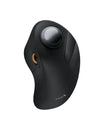

FAQ - EM11 PRO
About Connection
If your mouse loses connection or becomes unstable via the USB receiver, please rebuild the connection using our web driver:
- Turn on the mouse and switch the channel to 2.4G mode.
- Plug the USB receiver into your computer's USB port.
- Open Google Chrome, Microsoft Edge, or Opera, and go to our web-based driver: www.hub.protoarc.com.
- Click on Settings, then select Pair New Receiver.
- A step-by-step guide will pop up on your screen. Simply follow the on-screen prompts to complete the pairing.
To clear the previous Bluetooth pairing history or switch to a new device, follow these steps:
- Turn off the mouse power.
- Press and hold the Scroll Wheel, and while holding it down, turn the power switch back ON.
- Watch the Bluetooth channel indicator light. Once it starts flashing rapidly, release the Scroll Wheel.
- Open your device’s Bluetooth list, search for the mouse, and click to reconnect.
About Charging
Your mouse will give you an early warning before running out of power:
- Low Battery Alert: The low-battery indicator will start flashing red, letting you know it’s time to plug it in.
- Charging Status: Connect the included USB-C cable to the port at the front of the mouse. The indicator light will stay solid red while charging.
- Fully Charged: Once fully charged, the red light will turn off, or turn blue/green depending on your production batch. You can then unplug the cable and continue using your mouse wirelessly.
Pro Tip: To extend battery life, we strongly recommend charging via your computer's USB port or a standard 5V-1A power adapter. Please avoid using smartphone super-fast chargers.
Yes. The EM11 Pro features smart energy-saving technology with both shallow and deep sleep modes that trigger automatically after periods of inactivity.
To wake it up, simply move the mouse or click any button, such as the left or right click. It will wake up and reconnect automatically.
About Advanced Features & Customization
The EM11 Pro offers a wide default sensitivity range from 800 to 4800 DPI, making it suitable for everything from precise spreadsheet editing to fast multi-screen navigation.
- On-the-fly Adjustment: Press the dedicated DPI button on top of the mouse to cycle through preset sensitivity levels.
- Advanced Customization: You can expand the DPI range from 200 to 7200 DPI through our web-based driver at www.hub.protoarc.com. From there, you can fine-tune your DPI and program the mouse’s customizable buttons.
- Productivity Booster: The side scroll wheel is designed to maximize efficiency. When working on wide Excel spreadsheets, browsing long webpages, or editing video timelines, you can scroll horizontally from left to right without dragging the bottom scroll bar manually.
- Customization Status: Currently, the side scroll wheel does not support key customization. However, our product and development team is actively optimizing this feature, and support is expected in a future update. Thank you for your patience and valuable feedback.
About Troubleshooting
Most minor connectivity issues can be resolved with the following troubleshooting steps:
- Check Device Battery: If your PC, phone, or tablet is below 20% battery, its Bluetooth or USB performance may be affected. Please charge your host device.
- Charge the Mouse: Low mouse battery can cause lagging or dropped connections. Charge it fully via a computer USB port as soon as the red light flashes.
- For 2.4G USB Connections: Unplug the USB receiver and plug it into a different USB port. Make sure the mouse is switched to the 2.4G channel.
- For Bluetooth Connections: Turn your host device's Bluetooth off, wait 5 seconds, and turn it back on. Move the mouse to trigger reconnection.
- If that does not work, remove or forget the mouse from your device's Bluetooth list, restart your device, and pair it again.
- Clean the Sensor: Dust or hairs can block the optical sensor at the bottom of the mouse. Use a cotton swab to gently wipe the sensor lens clean.
About Hub Driver Support
To successfully customize your EM11 Pro features via the web driver, make sure your setup meets the following requirements:
- Operating System: Windows 8–11 or macOS 10.12 and above.
- Connection Requirement: The mouse must be connected via the 2.4G USB receiver. The web driver cannot recognize the mouse over Bluetooth during configuration.
- Supported Browsers: Please use the latest version of Google Chrome, Microsoft Edge, or Opera with a stable network connection.
- Compatibility: This software only supports specific ProtoArc programmable models. Please verify compatibility in your product manual.
Due to macOS system security policies, you must manually grant Input Monitoring permissions to your browser before it can communicate with your mouse. Follow these steps:
- Open System Settings on your Mac.
- Navigate to Privacy & Security.
- Scroll down, locate, and click Input Monitoring.
- Toggle the switch ON for the browser you are using, such as Google Chrome or Microsoft Edge.
- Restart your browser and try connecting the mouse again.
Note: If your browser is not listed under Input Monitoring, click the “+” icon at the bottom to add it manually. Without this permission, the browser cannot read or write custom configurations to the mouse.
