








FAQ - EK04
About EK04 Differences
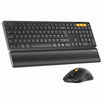
EK04: Keyboard + Number Pad
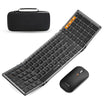
EKM04: Keyboard + Number Pad + Mouse
EKM04 A: Keyboard + Mouse
About EK04 System Compatibility
The product only supports Windows systems.
About EK04 Connection
No, they don't support bluetooth connection, they only support 2.4GHz wireless connection, and the keyboard and number pad share one USB-A receiver.
‒ Please fully charge the keyboard/number pad first, because low power may influence the performance of the products.
‒ Unplug and replug the USB receiver, try a different USB port.
‒ Attempt to connect the keyboard/number pad to another device via USB to see if it can work properly.
If the issue persists, re-pair the keyboard with the USB dongle.
‒ Insert the USB receiver;
‒ Turn on the keyboard, and press Esc and + buttons for 3 seconds to enter pairing mode (Use the + on the main keyboard, not on the numeric keypad), if you see the USB mode indicator light flashing, then the keyboard has entered the pairing mode.
‒ Once the keyboard has entered the pairing mode, quickly unplug and plug in the USB receiver.
‒ And there we repaired the keyboard with the USB receiver.
Sorry, but we currently do not sell the USB receiver for this product separately.
About EK04 Keyboard Buttons
Before utilizing the function keys, please follow these steps:
1. Press the FN+ESC keys together to activate the FN function on the keyboard.
2. Once the FN function is enabled, you can press the F1-F12 keys to access their respective functions.
‒ Ensure that the keyboard is fully charged, as low battery levels can affect its performance.
‒ Unplug and replug the USB receiver into a different USB port on your device.
‒ Try connecting the keyboard to other devices to determine if the problem persists.
About EK04 Charging
1. When the battery is low, the low battery red indicator starts flashing until the keyboard/number pad turns off.
2. Plug the Type-C port into the keyboard/numberpad and the USB-A port into the computer to charge.The red indicator light stays on while charging.
3. It takes 2-3 hours to fully charge. The indicator light turns green when fully charged.
1. Confirm whether the original USB A to USB C charging cable is being used.
2. Confirm if the charging indicator lights up during charging.
3. To rule out the issue with the charging cable, please replace it with another USB A to USB C charging cable and plug it into a computer's USB port to charge the product. (Our products require a charging interface with an output of 5V, and the computer's USB port is the best option.)
